Your organization's own name for public links
Pas encore disponible dans votre langue, affiché en anglais
Your public forms and surveys can open on a name under your organization's own
domain, such as survey.example.org, instead of pulseform.io. People open
and answer a link on an address they already know more readily than one they
have never seen.
It is included in the Organizations and Nonprofits plans, and in the trial, at no extra price. Only an organization administrator can add, change or remove the name. Other members see which name is in use.
Before you start
- You need access to the place where your domain's records are managed: your domain's control panel, such as Cloudflare, cPanel or Hostinger. If someone else manages it, send them this page.
- Choose a name under your domain, such as
survey.example.orgorforms.example.org. The domain itself (example.org) cannot be used, because your website lives there. - Use English letters, digits, hyphens and dots only.
Add the name
- Open My Account in the side menu. Find the card Domain of the public links.
- Type the name in The name, under your domain, such as
survey.example.org, and press Add. - The card shows two records. Each has a button to copy its name and one to copy its value.
If the name already leads somewhere, the card shows where, before anything is kept. Using it changes its record, so whatever it shows now stops opening. Press Use it anyway only if that is what you want, or Choose another.
The two records
Add both, where your domain is managed.
| Type | Name | Value |
|---|---|---|
| CNAME | your name, such as survey |
links.pulseform.io |
| TXT | _pulseform. and your name, such as _pulseform.survey |
pulseform-verify=…, copied from the card |
- The CNAME points the name to pulseForm.
- The TXT proves the name is yours. Its value is your account's own: copy it from the card, never from another page.
Many panels add your domain to the name by themselves: you type survey, and
the record is for survey.example.org. Others want the whole name. The
drawings below show which.
In Cloudflare
Open your domain, then DNS › Records › Add record. Add the CNAME, save, then add the TXT.
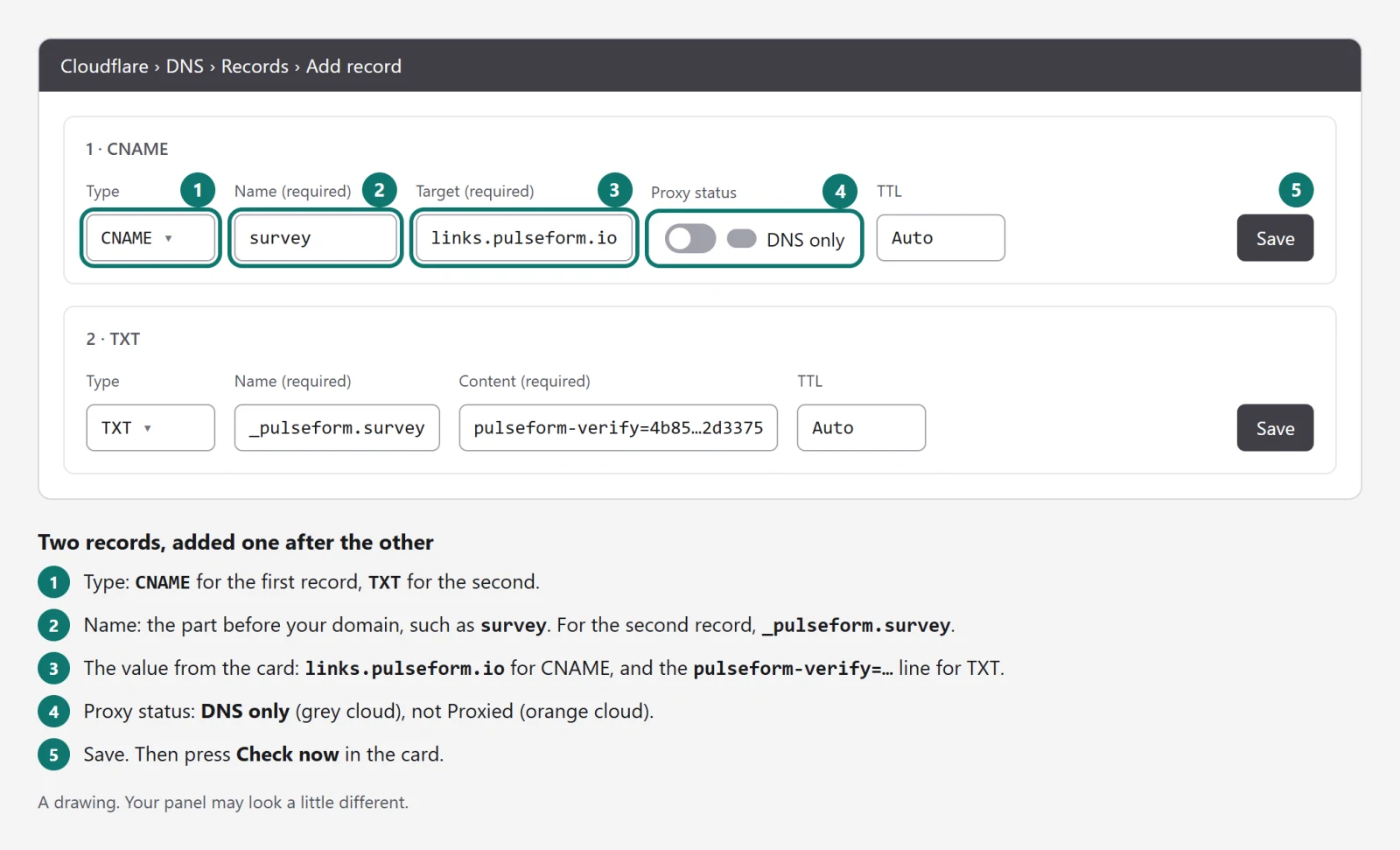
Set Proxy status to DNS only (grey cloud) for the CNAME. With Proxied (orange cloud), the name passes through Cloudflare's servers and pulseForm cannot prepare its secure address.
In cPanel
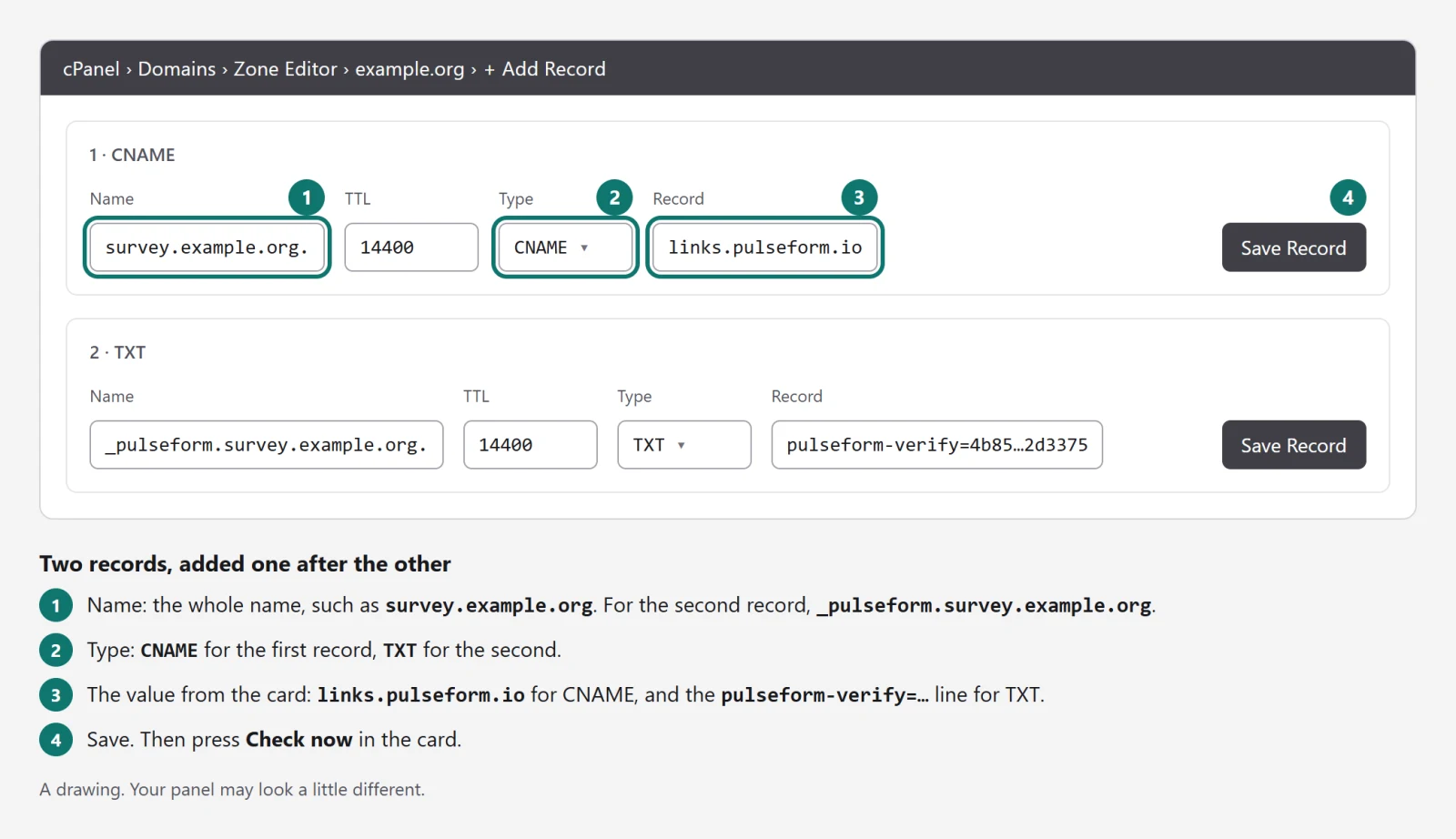
Open Domains › Zone Editor, find your domain and choose Manage, then + Add Record. cPanel wants the whole name, ending with a dot, which it adds by itself.
In Hostinger
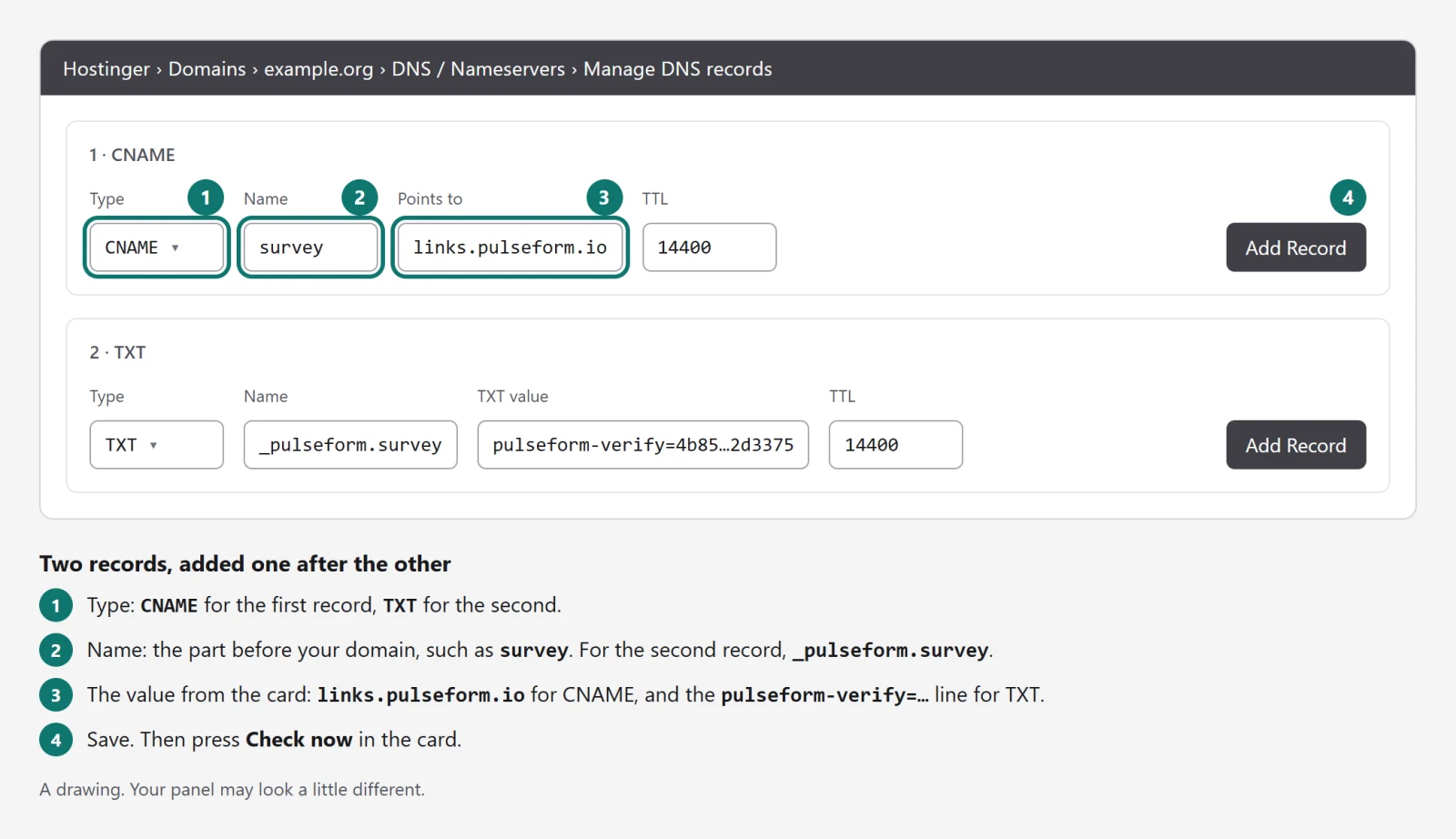
Open Domains, choose your domain, then DNS / Nameservers and Manage DNS records. Choose the type, fill in the fields and press Add Record, once for each record.
What a proxy is
Some panels can send visitors of a name through their own servers first, to speed up or protect a website. That is a proxy. In Cloudflare it is the orange cloud. A name behind a proxy does not reach pulseForm directly, so its secure address cannot be prepared and its pages do not open. Leave the pulseForm name DNS only. Your other names are not affected.
Check now
After adding both records, press Check now in the card. Records can take a few minutes, sometimes some hours, to be seen everywhere. pulseForm also looks by itself every hour, so you can close the page.
The card says what the last check found: which record is missing or different, and when it looked.
What the card says
| The card | What it means |
|---|---|
| Waiting for the two records | They were not seen yet. Check that both are there, and wait a little |
| Preparing the secure address | Both records are right. pulseForm is preparing the padlock, usually within a few minutes |
| Works | Your links are on the name |
| Stopped | A record was removed or changed, or the secure address ended. Your links are back on pulseform.io until it is fixed |
| Your plan no longer includes your own name | The name works until the day shown, then its links lead to pulseform.io |
| The platform stopped this name | pulseForm's staff stopped it, with the reason shown. Open a support ticket to ask about it |
Once it works
- The share window, the Collect responses tab and the QR window of every
form and survey show two addresses: first the one on your name, then the one
on
pulseform.io. Each has its own copy button and its own QR code, as SVG or as a PNG large enough for a poster. Both open the same form. - The quick copy in the lists, and invitations sent by email and SMS, use your name.
- On the name only your public forms, surveys and invitations open. Signing in
and your dashboard stay on
pulseform.io.
If it stops
If a record is removed or changed, the name stops. Your administrators are told
once, in the app and by email, with the record that is missing. New links are
on pulseform.io meanwhile. Put the record back and press Check now: the
name works again without being added anew. The card shows both records again,
with their copy buttons.
Change or remove the name
- Change the name: type the new one and add its two records. The name in use keeps working until the new one does. Then the old name leads to the same pages on the new one for 90 days, and is released. You can go back to it within those days, or press End the previous name to end it sooner.
- Remove: links and QR codes already published on the name stop working. The card asks before it removes it. You can then remove its two records from your panel.
When the plan changes
If your account moves to a plan that does not include its own name, the name
keeps working for 30 days, and your administrators are told the day it ends,
and again 7 days before. Then its links lead to the same pages on
pulseform.io for 90 days, and the name is released. Move back to a plan that
includes it at any time before then, and it works again with nothing to add.