What are paper answer sheets?
Paper answer sheets (Intelligent Data Capture) turn a paper questionnaire into survey responses without anyone typing them in. You print the survey from Pulseform as an answer sheet, hand it out, collect the filled sheets, scan or photograph them, and the system reads the answers and saves them as responses. You only look at the few marks it is not sure of.
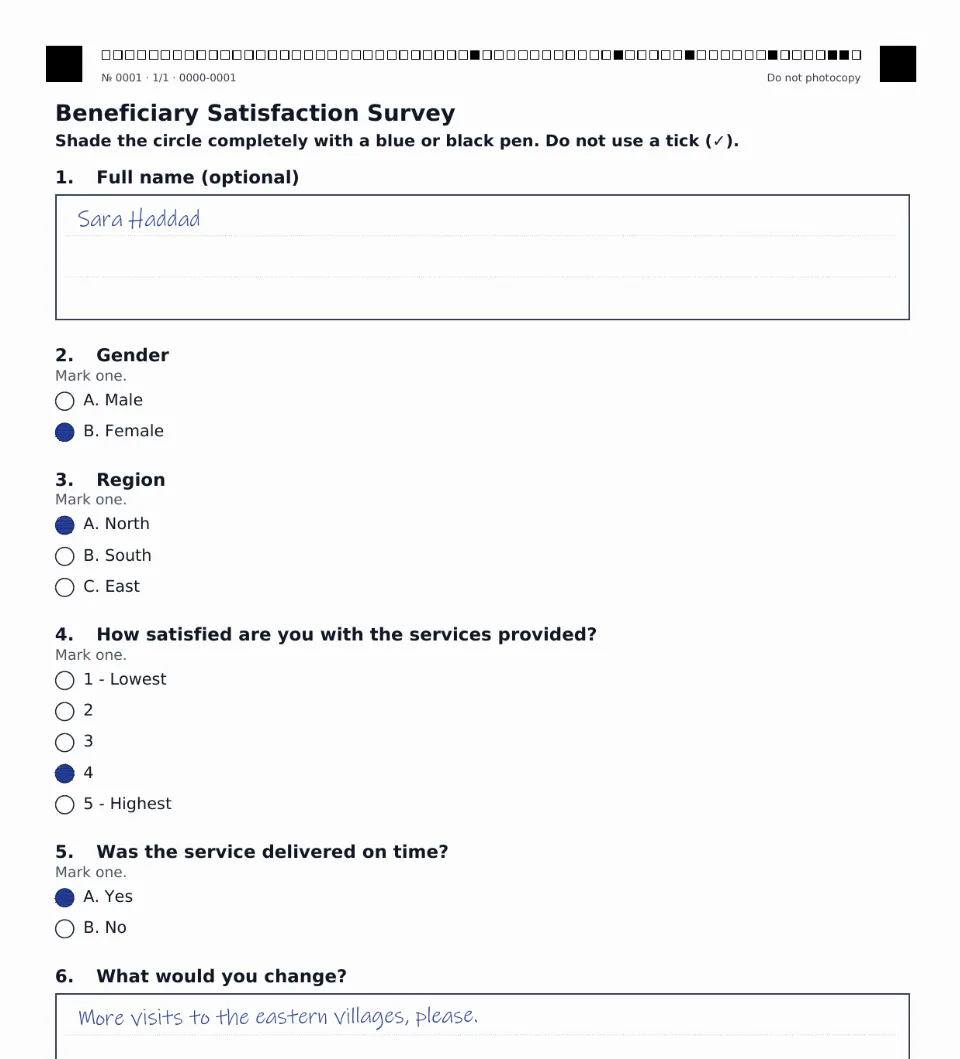 An answer sheet printed from Pulseform and filled in with a blue pen. The corner squares and the code at the top let the system find every circle.
Surveys only: paper answer sheets belong to the Surveys module. Forms are collected on screen, through the link, the Collect app or a CSV import.
When to use paper
Paper is the right choice when the people answering cannot or will not use a phone: older respondents, schools, camps, community meetings, places where phones are not allowed, or a hall full of people answering at the same time.
| Public link | Collect app | Paper answer sheets | |
|---|---|---|---|
| Who fills it in | Respondents, on their phones | Your field team | Respondents, with a pen |
| Needs a device | Yes, one per respondent | Yes, one per collector | No, only a scanner or phone at the office |
| Typing at the office | None | None | None, only a quick check |
| Many people at once | Yes | Slow | Yes |
How it works
- Print. Open the survey, choose Options → Paper answer sheets, then Print answer sheets. You get a PDF of A4 sheets. See Print answer sheets.
- Hand out and collect. Respondents shade circles and write short answers with a blue or black pen.
- Scan. Scan the sheets into one PDF, or take clear photos. Pages can be in any order and any way up.
- Upload and check. The system reads every page, saves what it read cleanly, and shows you only what needs a look. Confirm, and the sheets become responses. See Scan and import sheets.
The responses arrive in the survey's results like any other response, so every chart, filter, export and analysis works on them straight away.
What the system reads
| Question type | On the sheet | How it is read |
|---|---|---|
| Single choice, multiple choice | A circle beside each option | Automatically |
| Yes / No | Two circles | Automatically |
| Rating | Circles from 1 to 5 | Automatically |
| Number, date | Circles under each digit, or boxes to write in (you choose when printing) | Circles: automatically. Boxes: AI or typed by you |
| Text | Lines to write on | AI, or typed by you |
A mark the system is unsure of (two options shaded, a faint mark, a tick beside the circle instead of inside it) is never guessed. It is shown to you with its image, and you decide.
What it costs
- Printing is free, as many sheets as you like.
- One scanned sheet is used for each sheet you save as a response. Rejected, discarded and duplicate sheets cost nothing. Your plan includes a number of sheets, and more can be bought in packs (see Packs and add-ons).
- Handwriting read by AI is paid from your AI credit. You see the most it can cost before you start, and you pay only for what is used. You can always type handwritten answers yourself instead, at no cost.
- Scanned page images are kept in your account's storage. They are small (grayscale, compressed) and deleted 30 days after the batch is confirmed, unless you choose to keep them.
Where to find it
- In any survey: Options → Paper answer sheets, under Collect responses.
- In the surveys list: a survey's Options menu → Paper answer sheets.
- On the responses screen of a survey with no responses yet, among the ways to collect them.