Form settings
Every form has a settings page with four tabs. Open it from the form's Options menu → Settings. Changes are kept only after you click Save Changes.
| Tab | In short |
|---|---|
| Details & Info | Form title and description |
| Limits & Quotas | Automatic expiration, maximum submissions, closed message |
| Control & Access | Accepting responses, public link, multi-step pages |
| Rules & Constraints | Duplicate-prevention rules across one or more fields |
Details & Info
- Form Title: shown at the top of the form, and in the forms list.
- Description / Instructions: shown to people above the fields, to explain what the form is for.
Limits & Quotas
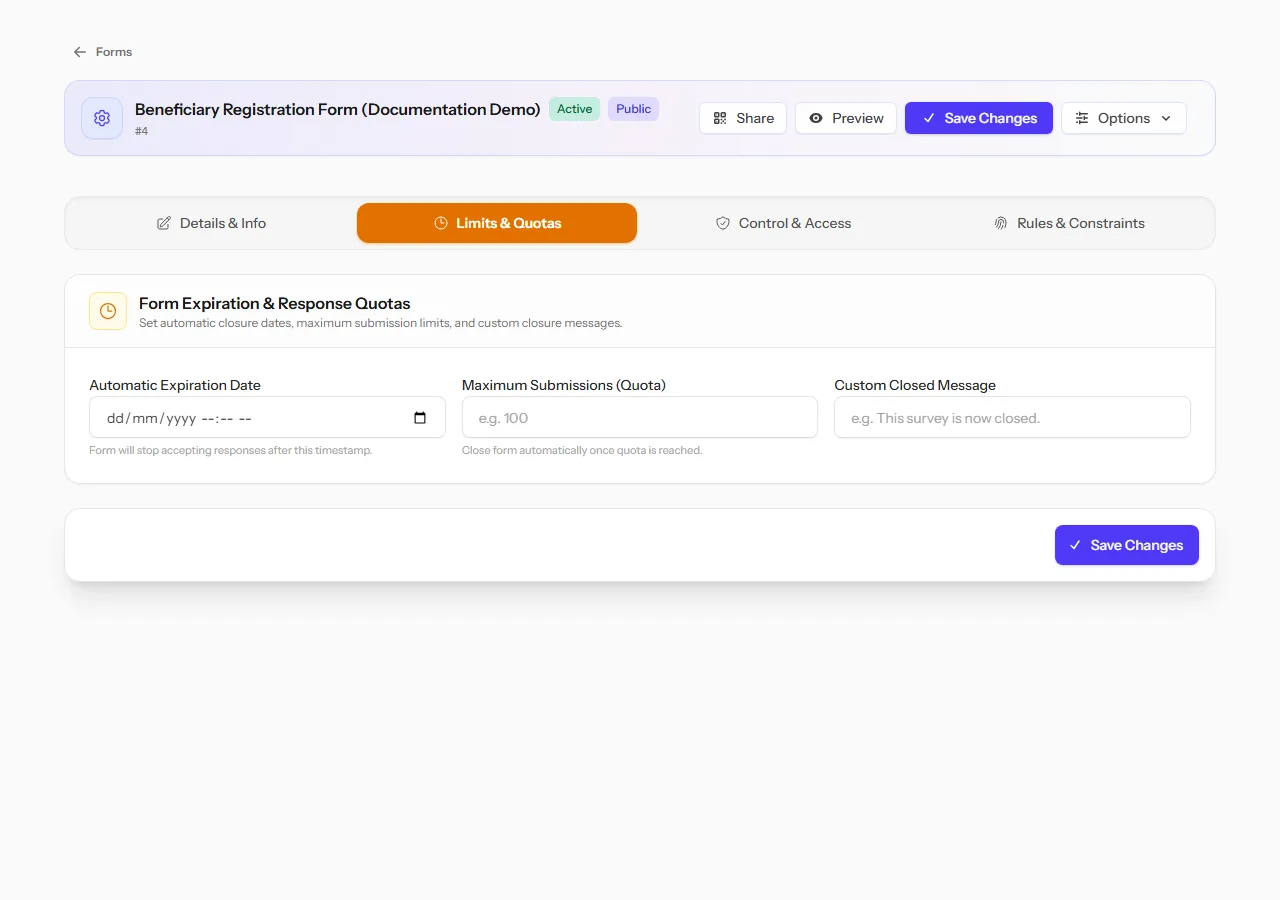
- Automatic Expiration Date: the form stops accepting responses after this date and time.
- Maximum Submissions (Quota): the form closes itself automatically once it reaches this many submissions.
- Custom Closed Message: what people see instead of the form, once it's closed — by either limit above, or by turning off Accept Responses.
Control & Access
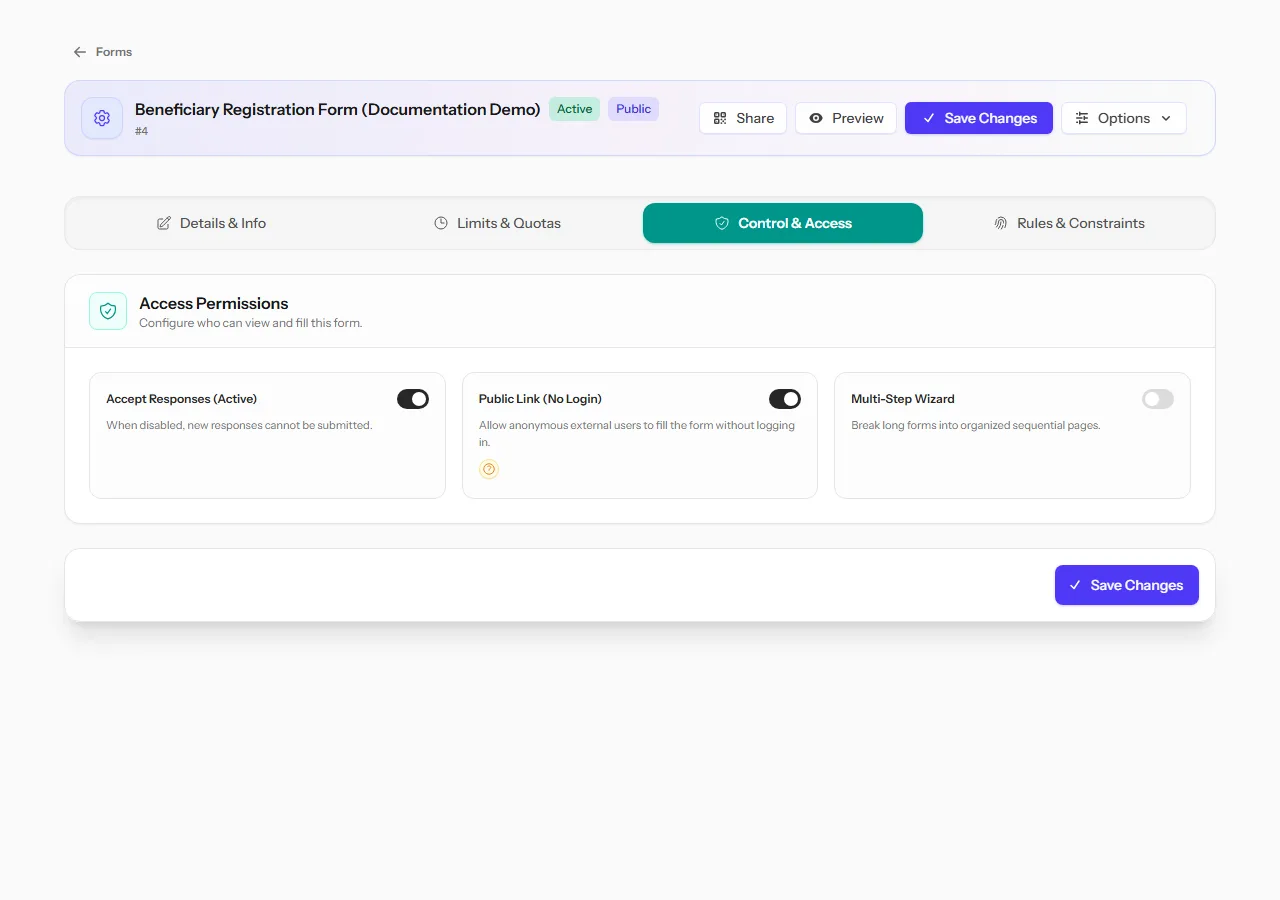
Access Permissions:
- Accept Responses (Active): turn it off to pause the form without deleting anything. See Statuses.
- Public Link (No Login): lets people fill in the form through its public link without an account. See Share a form.
Multi-Step Wizard: turn on to break a long form into several pages people move through with Next Step and Previous Step, instead of one long scroll. Each field is then assigned to a step.
Respondent Name and Location (Field App): decides whether the Collect app shows its Respondent Name and Location boxes to field collectors. It is on by default.
- On: the name and location a collector types are saved with the record. You see them when you open a record, and they are included when you export.
- Off: the boxes are hidden, and no name or location is kept. Use it when the people you interview must stay anonymous. If a phone that hasn't updated yet still sends a name or location, they are discarded and the record is accepted with its answers.
Turning it off doesn't erase names and locations that were already saved.
Note The collector's own notes box at the end of the form is separate and is always kept, whatever this setting says.
Rules & Constraints
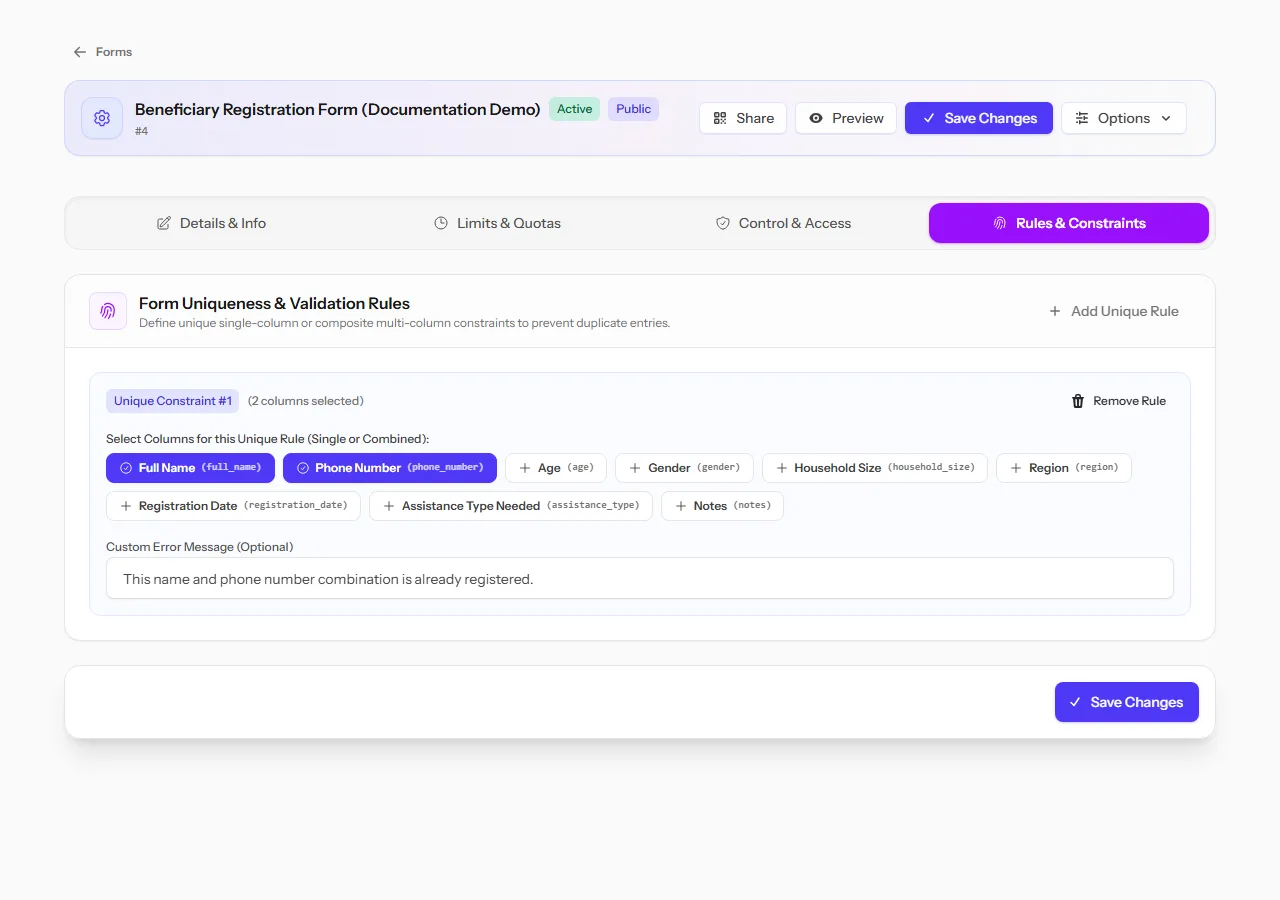
This is one of the most powerful tools in the form builder: it stops the same real-world record from being registered twice.
Click Add Unique Rule to create a constraint, then pick one or more fields under Select Columns for this Unique Rule. A submission is rejected if every selected field together matches a record that already exists.
You can add more than one rule, and each rule can cover a single field or several fields combined:
- A rule on one field, such as a national ID number, rejects any submission that repeats a value already in the form.
- A rule on several fields together, such as Full Name + Phone Number (shown above), rejects a submission only when that exact combination has already been seen. This matters because neither field is safe to check alone: many people can share a common name, and a single mistyped digit would make two records for the same person look like two different people if you only checked the phone number. Checking the combination catches the real duplicate while still allowing, for example, two different people who happen to share a name.
Each rule can also have its own Custom Error Message (Optional), shown to whoever submits a duplicate — for example, "This name and phone number combination is already registered."
Tip Attachment / File fields can't be used in a uniqueness rule, since there's nothing to compare a file against. They're left out of the field picker automatically.