Share a form's public link
A public link lets anyone fill in your form without signing in. You can send the link, or print a QR code that people scan with their phone.
Before you start
- The form must already be created. See New Form on the Custom Forms page.
- New forms are not public until you turn the public link on. The steps below show how.
Turn on the public link
- Click Custom Forms in the top menu and open your form.
- Click Options, then Settings.
- Under Access Permissions, make sure both switches are on:
- Accept Responses (Active), which lets the form receive answers.
- Public Link (No Login), which lets people open it without an account.
- Click Save Changes.
Copy the link or QR code
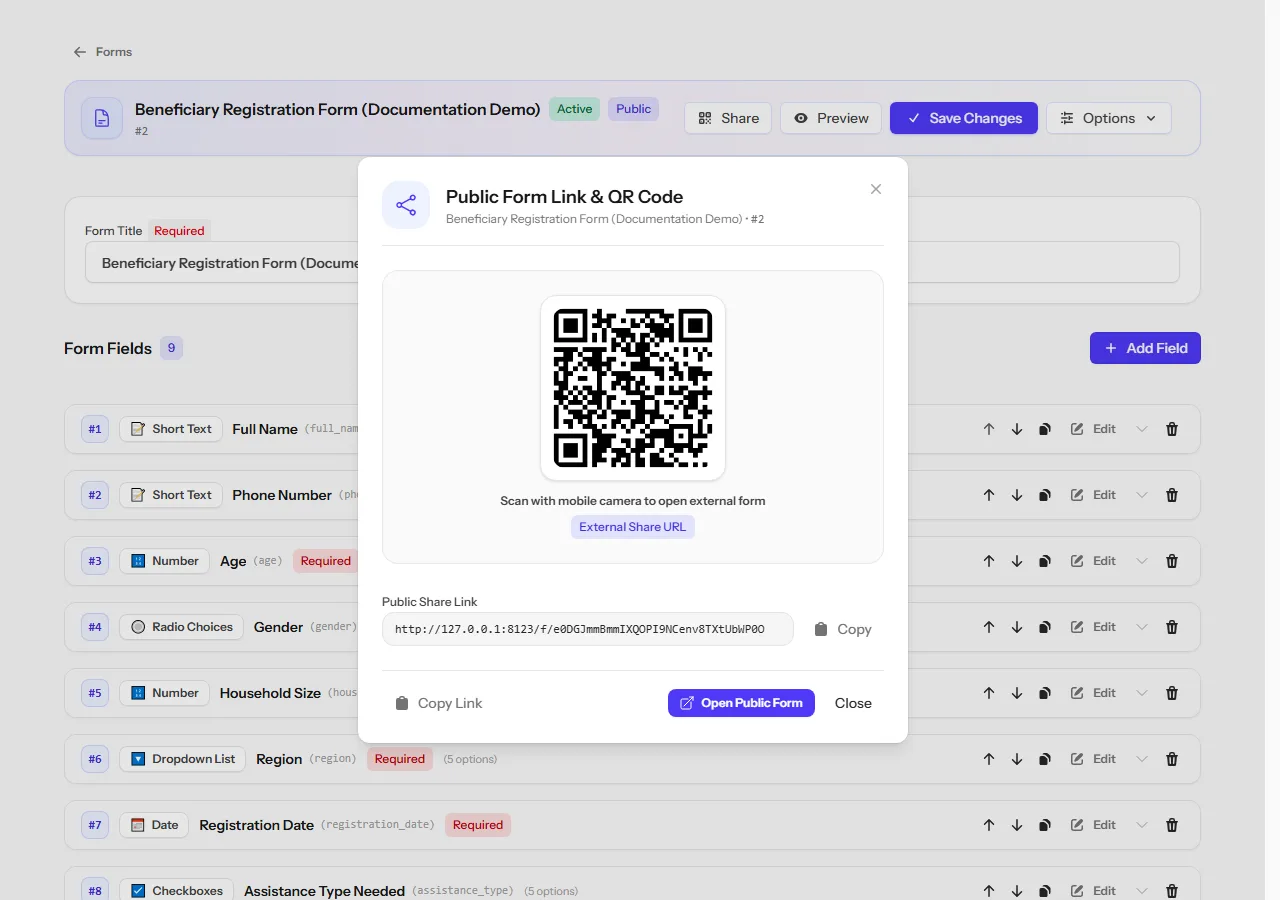
- On your form, click Share.
- Click Copy Link to copy the address, then paste it into an email or message.
- You can also use the QR code shown in the same window, for example on a printed poster. People scan it with their phone camera to open the form.
Tip Click Open Public Form to see the form exactly as others will see it.
What people see
- People fill in the form and click Submit Form.
- If the form has several steps, they move between them with Next Step and Previous Step.
- When they finish, they see Form Submitted Successfully!
If the link does not open
| The message says | What to do |
|---|---|
| Form Link Unavailable | Turn on Public Link (No Login) in Settings. |
| Form Currently Inactive | Turn on Accept Responses (Active) in Settings. |
| Form is Currently Closed | The form has passed its end date, or reached its answer limit. |
Note If the share window shows "Public external access is currently disabled for this form", the public link switch is still off.
Collecting in the field
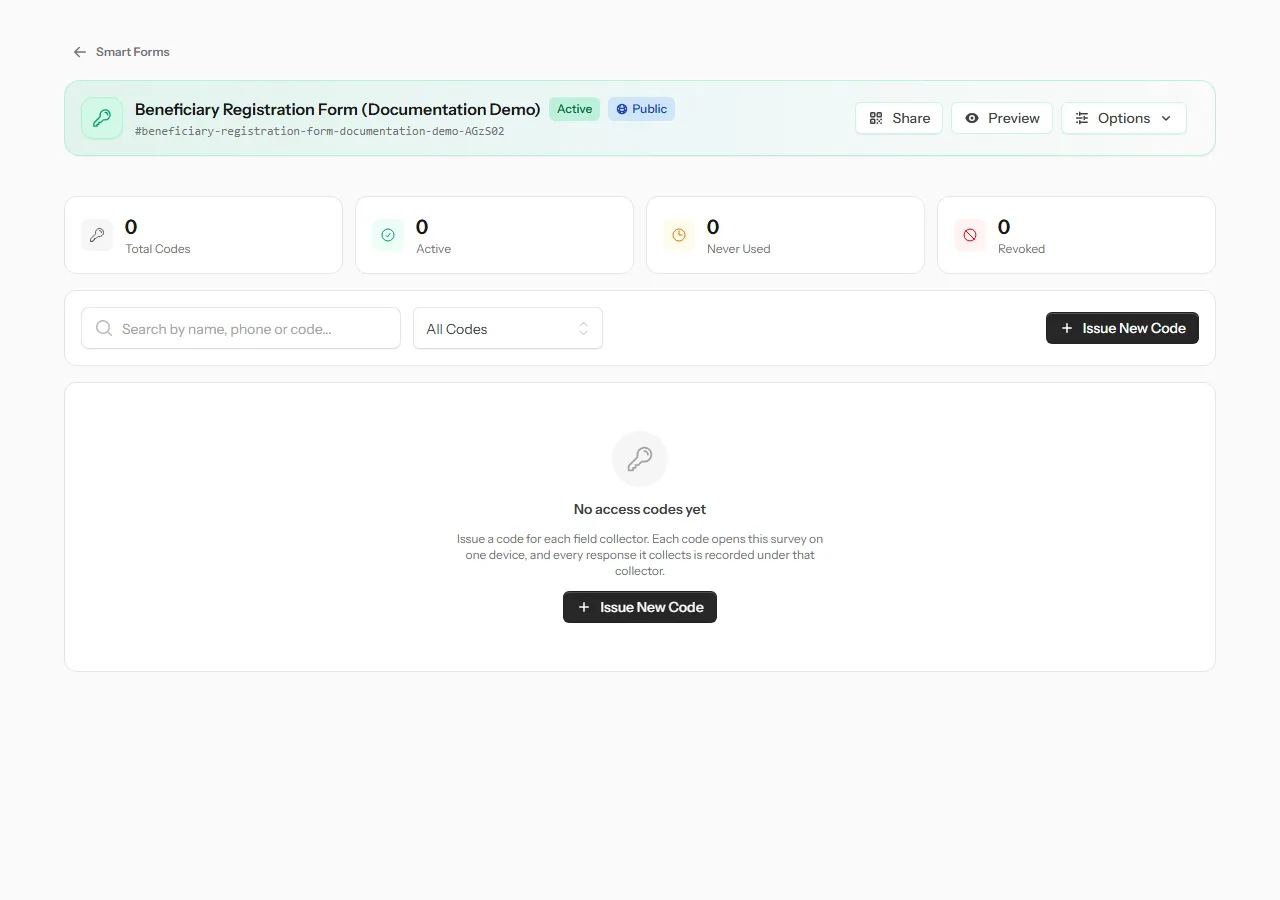
If a team collects answers on phones or tablets, give each person their own access code instead of the public link. Open Options → Field Collector Codes → Issue New Code. Each code works on one device, and you can cancel it any time with Revoke Access.
Tip A form with a file upload field, a date rule tied to today or another field, a duplicate check, or invitation-only access can't be collected offline yet. Keep those out of a form your field team will use. A custom pattern is not one of them: the Collect app doesn't check patterns, and an answer that doesn't fit is kept and marked for you to review. See What is Collect?.