Build a form
A form collects records, such as beneficiary registrations, an inventory, or incident reports. Each submission becomes one row in a table.
Form or survey?
| Use a form when | Use a survey when |
|---|---|
| You're recording things: people, items, events | You're asking opinions to analyze |
| Each row matters on its own | The overall result matters |
| You need file uploads or many field types | You need statistics, like reliability or comparisons between groups |
Tip Don't build a satisfaction survey as a form because it's quicker. You'll lose all the survey analysis tools.
Create the form
- Click Custom Forms in the top menu, then New Form.
- Type a name in Form Title.
- Click Add Field and fill in:
- Field Label / Title: the question people read.
- The field type (see below).
- Short Code (For API & Exports): a short name for the column in your data,
such as
beneficiary_name. - Required, if it must be filled in.
- For choice fields, type the options separated by commas.
- Click Update Field, then add the next field.
- When you're done, click Create Form.
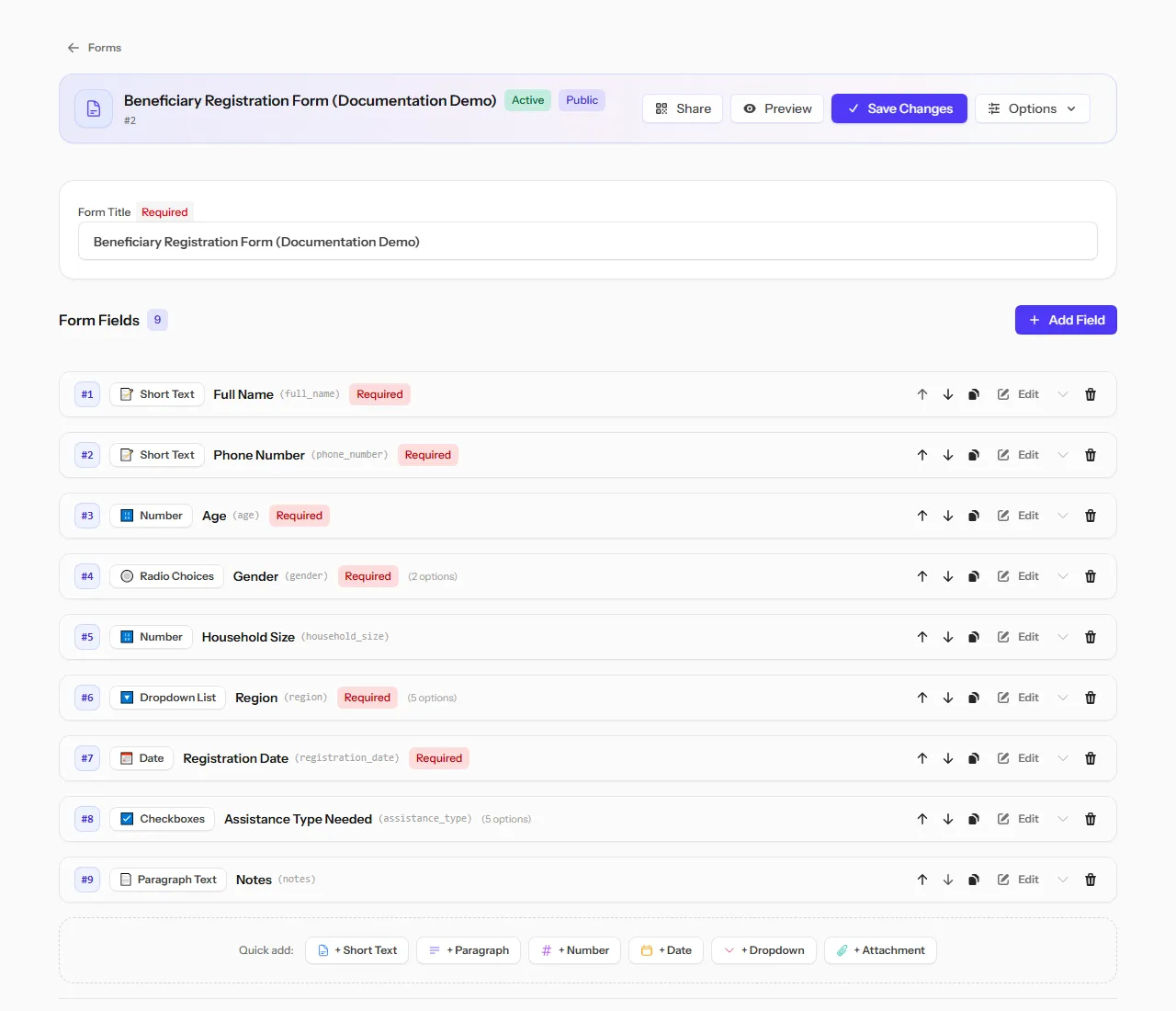 The field list: type, short code, and how many options each field has.
Field types
| Type | Use it for |
|---|---|
| Short Text | A name, a code, a short answer |
| Paragraph Text | Descriptions and notes |
| Number | Anything you'll add up or compare, such as ages, amounts or quantities |
| Date | When something happened |
| Email Address | Contact emails |
| Dropdown List | One choice from a long list |
| Radio Choices | One choice from a few, all visible |
| Checkboxes | Several choices at once |
| Attachment / File | Documents or photos |
Tip Use Number for anything you'll add up or average. Numbers typed into a text field can't be summed or sorted properly.
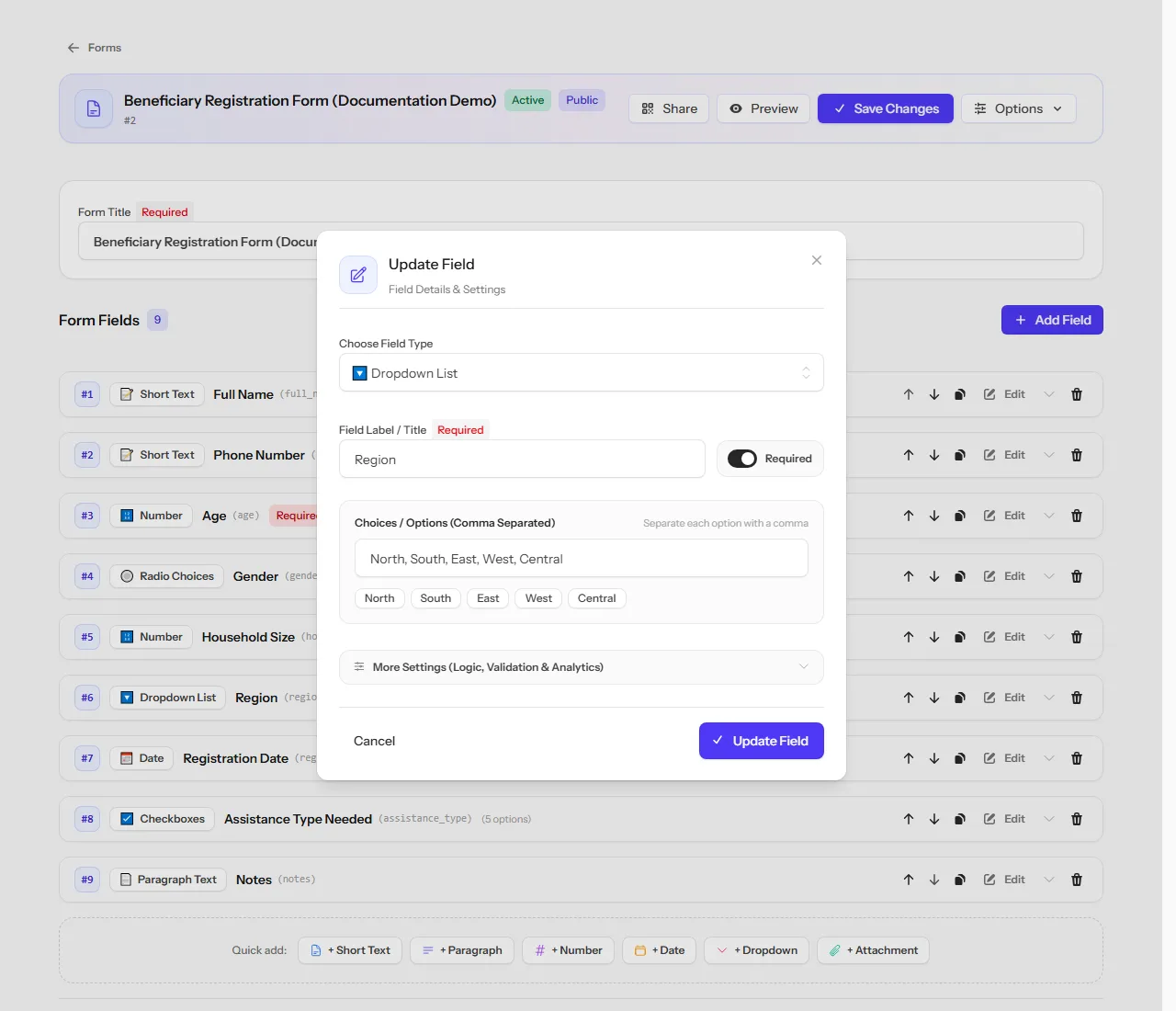 Editing a dropdown field: its options appear as chips as you type them.
Extra settings
Open More Settings (Logic, Validation & Analytics) on a field to:
- show or hide it based on earlier answers (skip logic),
- set limits, such as a minimum and maximum number, or an allowed date range,
- choose whether it appears in charts.
Field constraints: control data quality as it comes in
Every field type has its own constraints, and setting them well means bad data gets caught the moment someone fills in the form, not weeks later while you're analyzing it. These live inside More Settings (Logic, Validation & Analytics) on each field.
Short Text and Paragraph Text: Min / Max Length {#text-limits}
Set a minimum and maximum number of characters. A minimum of 2 stops someone submitting a single letter as a name; a maximum keeps a short-answer field actually short.
Number: Min / Max Value {#number-limits}
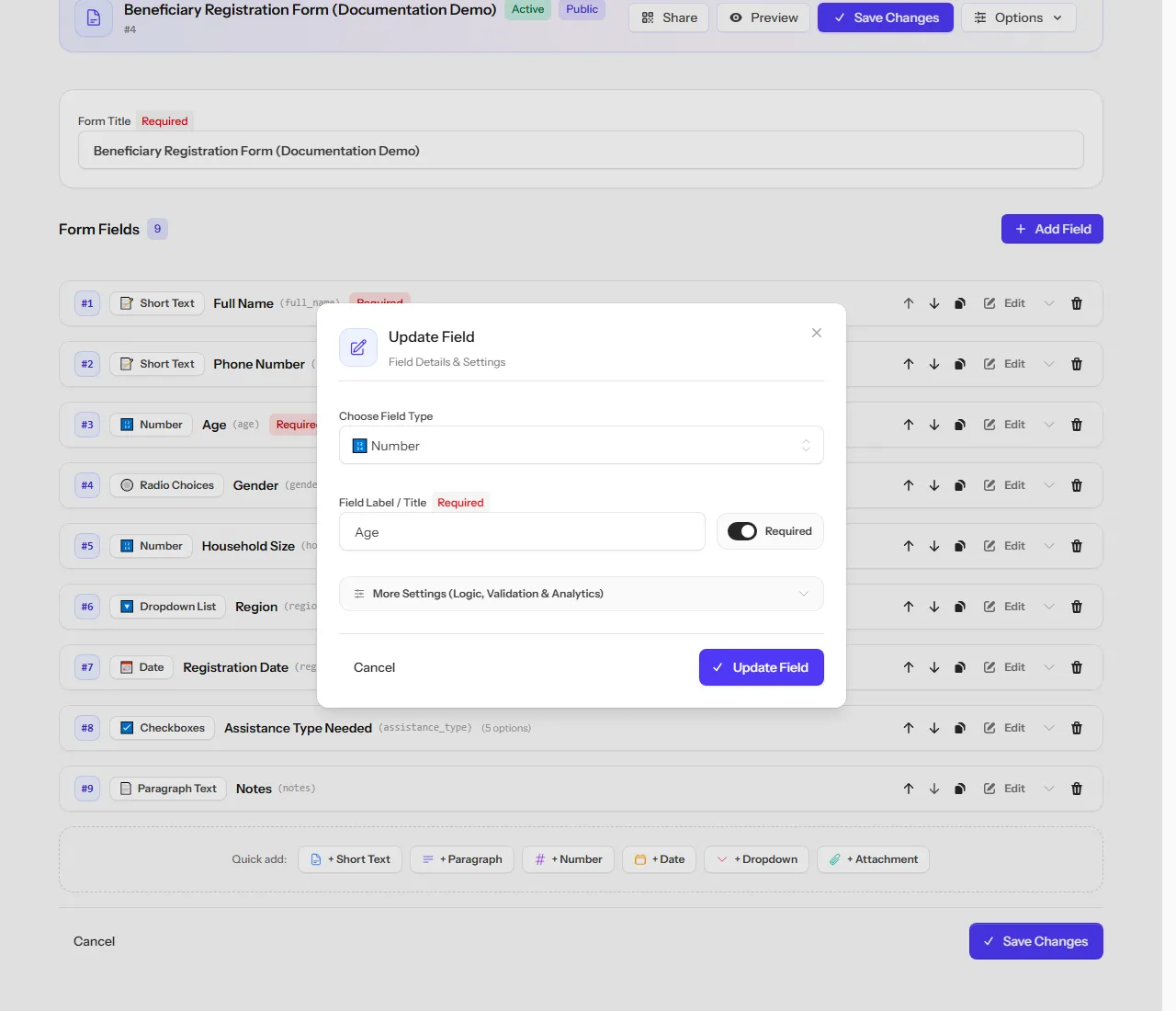
Set the lowest and highest value the field will accept. For example, an Age field with a minimum of 0 and a maximum of 120 rejects both negative ages and obvious typos like 1200.
Text Format Validation (Regex) {#regex-limits}
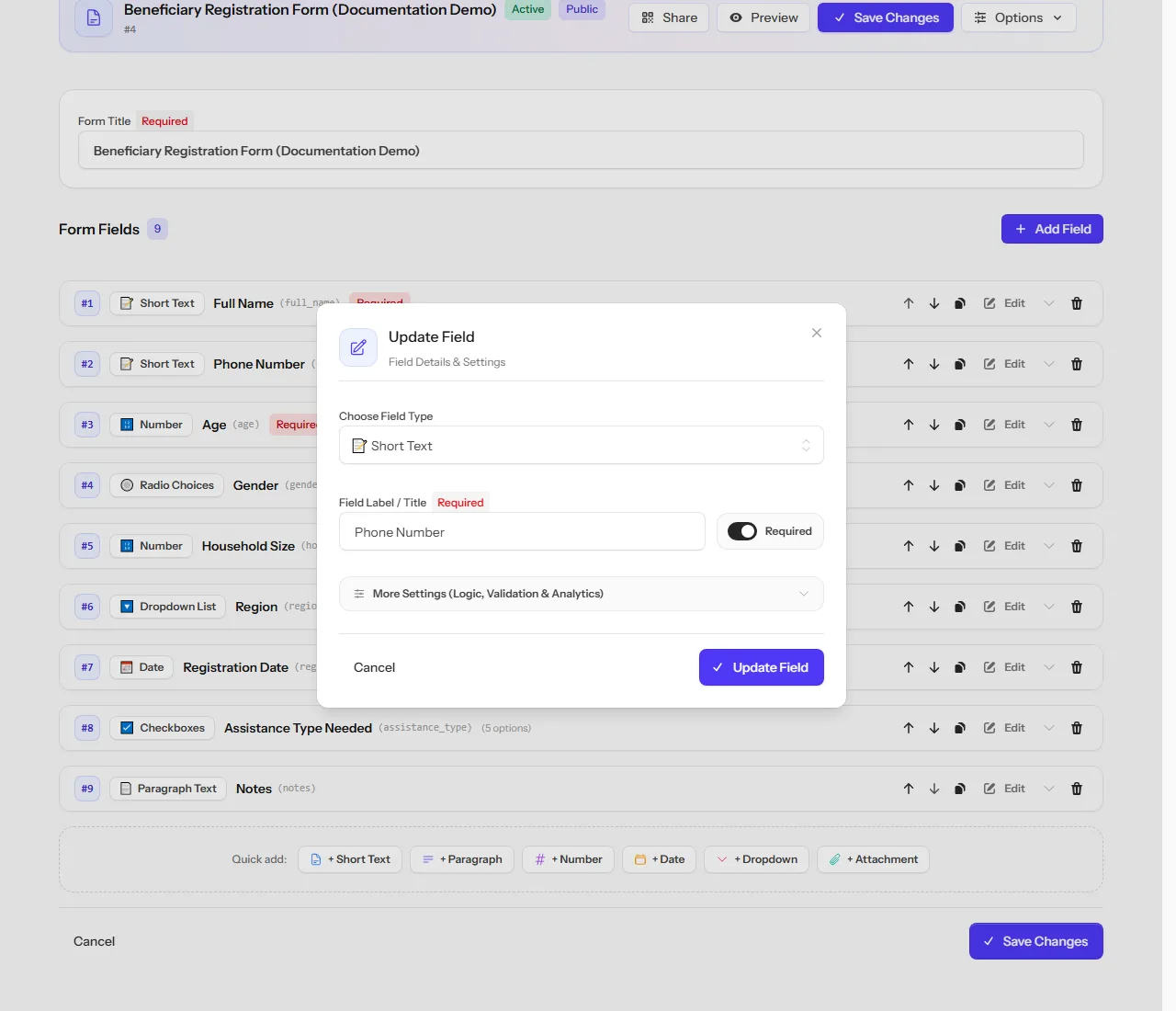
For text fields with a predictable shape — a phone number, a national ID, a reference code — you can set a pattern (regex) the answer must match. The field only accepts submissions that fit the pattern, so a mistyped phone number is rejected on the spot instead of showing up broken in your export.
Write the pattern in the Text Format Validation (Regex) box, for example
^07[0-9]{8}$ for a ten-digit mobile number starting with 07. Patterns work on
Arabic text too: the Pattern helper's ready-made Arabic letters only format accepts Arabic letters and spaces. If you set a
custom message on the field, people see it when their answer doesn't fit.
You don't have to write the pattern yourself. Click Pattern helper beside the box, pick a ready-made format such as Mobile number, change its settings (for a mobile number: what it Starts with and its Total digits), and press Use this. The pattern and the error message are filled in for you, and Try a value shows which formats accept what you type.
The pattern must match the whole answer, so [0-9]+ accepts digits only and
refuses 0591234567abc. For a fixed-length number use ^05[0-9]{8}$. (A lone
[0-9] means exactly one digit.)
A pattern that can't be understood, such as one with an unclosed bracket, is refused when you save the form, so a broken pattern can never lock everyone out of a field.
Where the pattern is checked:
| Where the answer comes from | Pattern checked? |
|---|---|
| The public link and the fill-in page | Yes, an answer that doesn't fit is refused |
| Importing records from a CSV file | Yes, the row is skipped and reported |
| The Collect app (field collectors) | No, see below |
The Collect app can't check patterns reliably without a connection, and an answer the app accepted but the server refused would be lost to the collector. So field collectors are not held to your patterns. Their answers are always kept, and any answer that doesn't fit is marked so you can find and review it. See View and export form records.
Note A pattern no longer stops you from giving a form to field collectors. When you issue a code for a form that has patterns, you are asked to confirm that they won't be checked in the field. See Issue and manage collector codes.
Tip Test your pattern against a few real examples, including edge cases, before publishing the form. A pattern that's too strict blocks valid answers; one that's too loose lets bad data through.
Date: Min / Max Date {#date-limits}
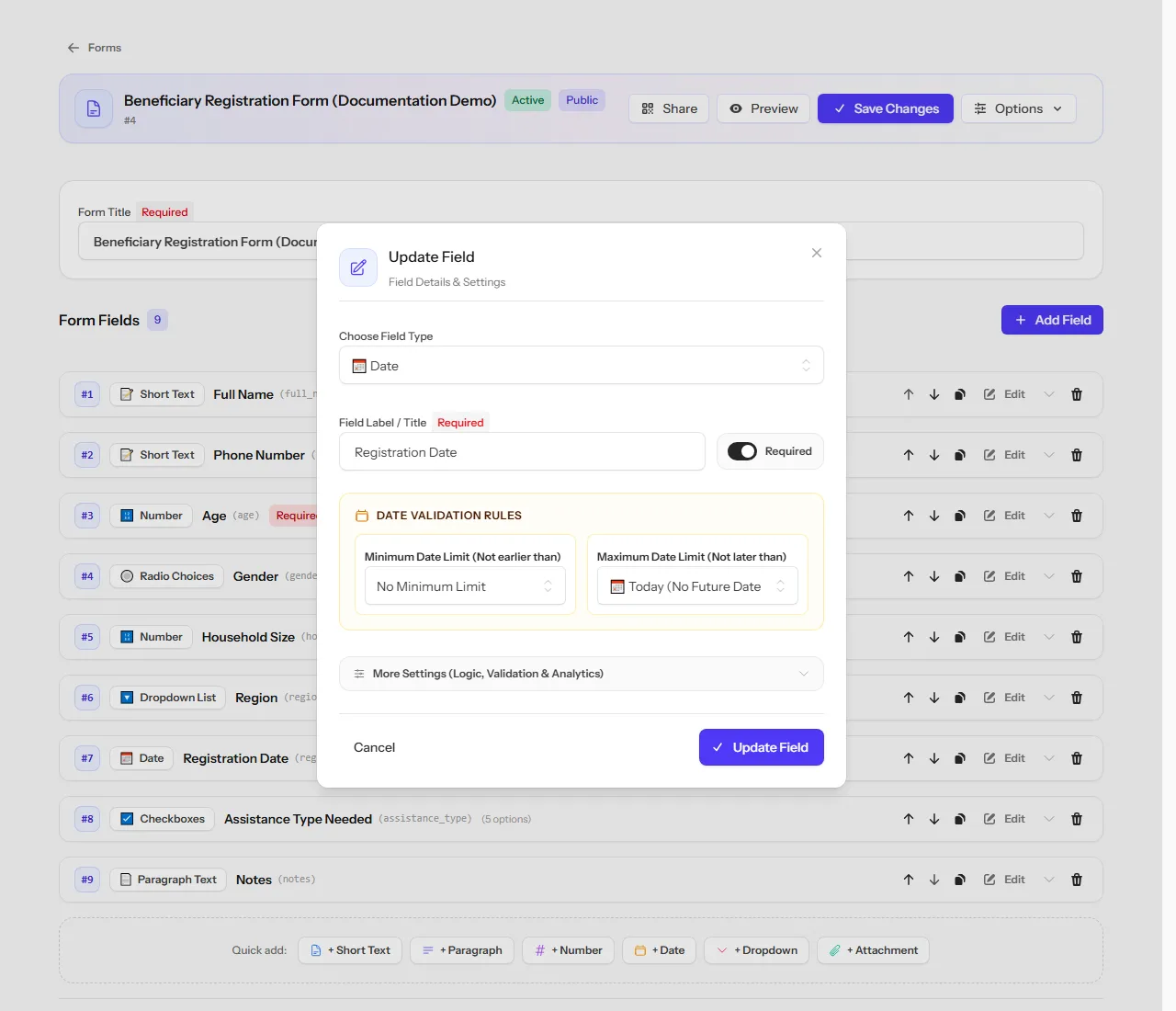
Set the earliest and latest date the field accepts. Each limit can be:
- No limit,
- Today (No Future Date) / Today (No Past Date), which moves automatically with the calendar, or
- A fixed date you choose.
A Registration Date field with its maximum set to Today (No Future Date) is a rule every registration form needs: nobody can register on a date that hasn't happened yet.
Attachment / File: type, size and count {#attachment-limits}
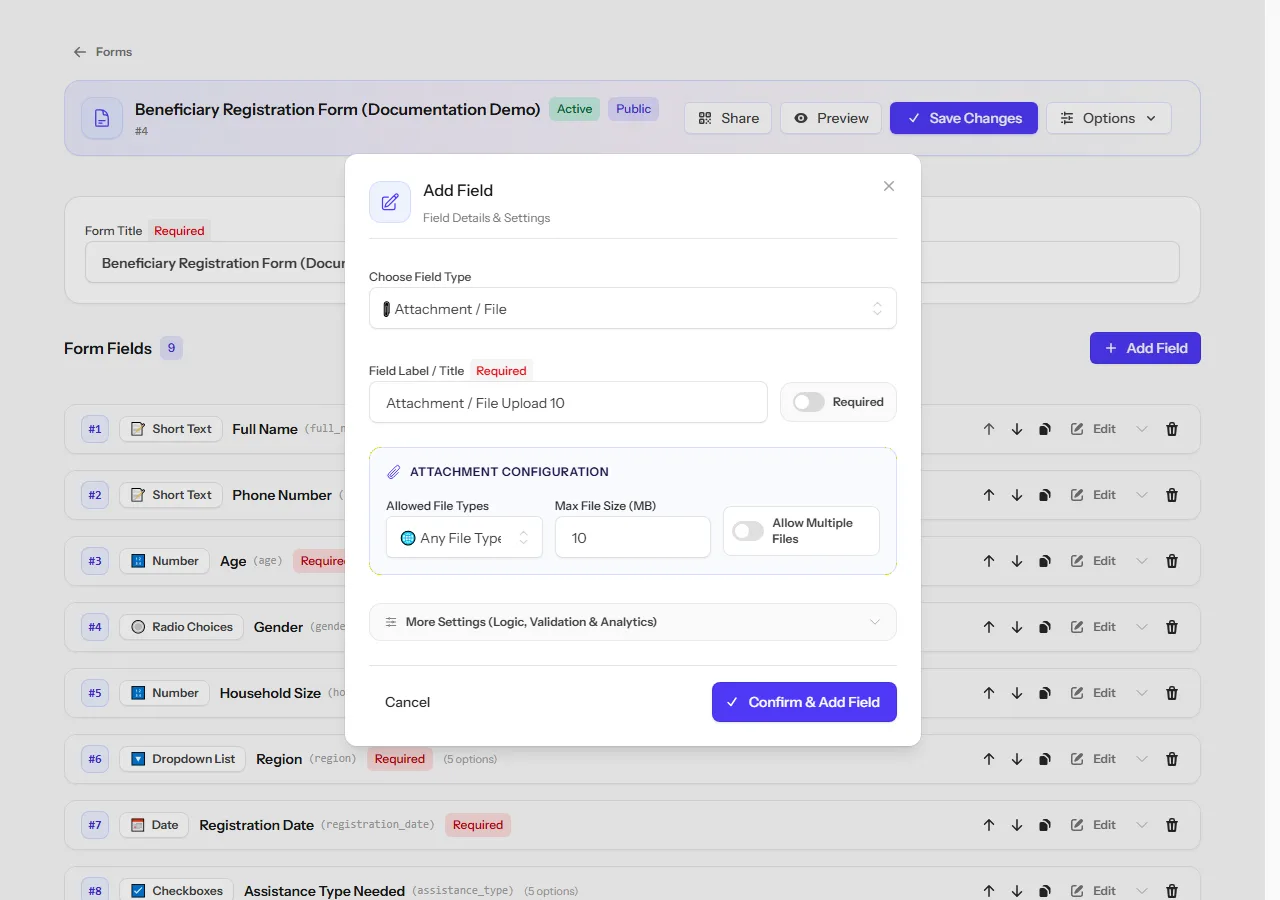
- Allowed File Types: restrict uploads to images, documents, or a specific list of extensions.
- Max File Size (MB): the largest file the field accepts.
- Allow Multiple Files: lets one submission attach more than one file to the same field.
Test before you share
Use Preview to fill in the form yourself. Test submissions are not saved and don't count against your limits.
Changes that are safe, and ones that aren't
| Change | After records arrive |
|---|---|
| Rewording a label, reordering fields, adding a field | Safe |
| Changing a field's short code | Splits your data into two columns |
| Changing a field's type | Existing values may not convert |
Warning Choose short codes carefully at the start. Changing them later splits your data.
What's next
Field constraints check one field at a time. To catch duplicates across several fields together — for example the same name and phone number appearing twice — see Rules & Constraints in form settings, one of the most powerful tools in the form builder.
Share the form's public link, or collect it in the field with Collect.